

Two ways to connect
You can connect Notion two ways. For most people, Notion’s MCP server is the smoother option, especially if you want the agent to reach your whole workspace.- Notion MCP (recommended). Connect Notion’s hosted MCP server once and the agent works across your Notion through it. This avoids the page-by-page granting that trips people up with the integration, and it’s the path we’ve seen work most reliably for broad access. See Connect with MCP.
- The Notion integration (Add button). A one-click OAuth connection scoped to the specific pages you pick. Good for a tight, single-area grant. See Connect the integration.
What the agent can do
Read pages and notes
Pull the content of any page you’ve shared, like meeting notes or a project brief.
Work with databases
Query a database, filter and sort rows, and read entry properties.
Create and update
Add new pages, append to existing ones, and update database entries.
Search the workspace
Find the right page or database by keyword before acting on it.
Example agent tasks
Connect with MCP
Notion runs a hosted MCP server, and connecting through it is the simplest way to give the agent broad, reliable access to your Notion.1
Add Notion's MCP server
Point the agent at Notion’s MCP server,
https://mcp.notion.com/mcp. Ask the agent to connect it, or add it from the agent’s tools.2
Authorize once
A connect card appears. Sign in to Notion and approve. Skydive stores the credential securely and its proxy attaches it to every request from then on.
3
The agent gets to work
It can now read and act across your Notion through the MCP server, no page-by-page granting to maintain.
MCP is one connection for your workspace, rather than the integration’s per-page grants. It’s the better default when you want the agent to work across your Notion. See Tools & MCP.
What you share
The rest of this page covers the Notion integration (the one-click Add option). If you connected through MCP above, that flow handles access for you. With the integration, Notion access is page by page. During the connect flow you pick exactly which pages and databases the agent can see, and it can’t touch anything you didn’t share. Grant a single project page for a focused task, or a top-level page to give the agent a whole area to work in. The connection is live, not a one-time snapshot. The agent reads Notion fresh every time, so it always sees the current content, including edits made after you connected. What it can reach is set by which pages you grant, not when you connected. Two things trip people up:- It only sees what you selected. If the agent seems to be missing your existing pages, they most likely weren’t picked in Notion’s page picker when you connected. It’s a scope gap, not a sync delay.
- New pages aren’t added automatically. A page you create later isn’t covered unless it lives under a page you already granted, or you share it with the connection.
Give the agent access to more pages
To widen what the agent can reach, do either of these in Notion:- Re-run the connection and select more pages in the page picker, or
- Open a page’s “ menu and choose Connections to add the agent to that page.
Check and manage access from a page
Open any page’s “ menu (top right) and go to Connections to see and control the agent’s access to that page:- Active connections lists the connections on the page. Your agent appears here (for example, Skydive), showing who authorized it.
- Capabilities shows exactly what the connection can do on the page: read content, insert content, update content, comment, and read comments.
- Add connection grants the agent access to this page if it isn’t already connected.
- Manage connections opens the workspace connection settings.
- Disconnect removes the agent’s access to that page.
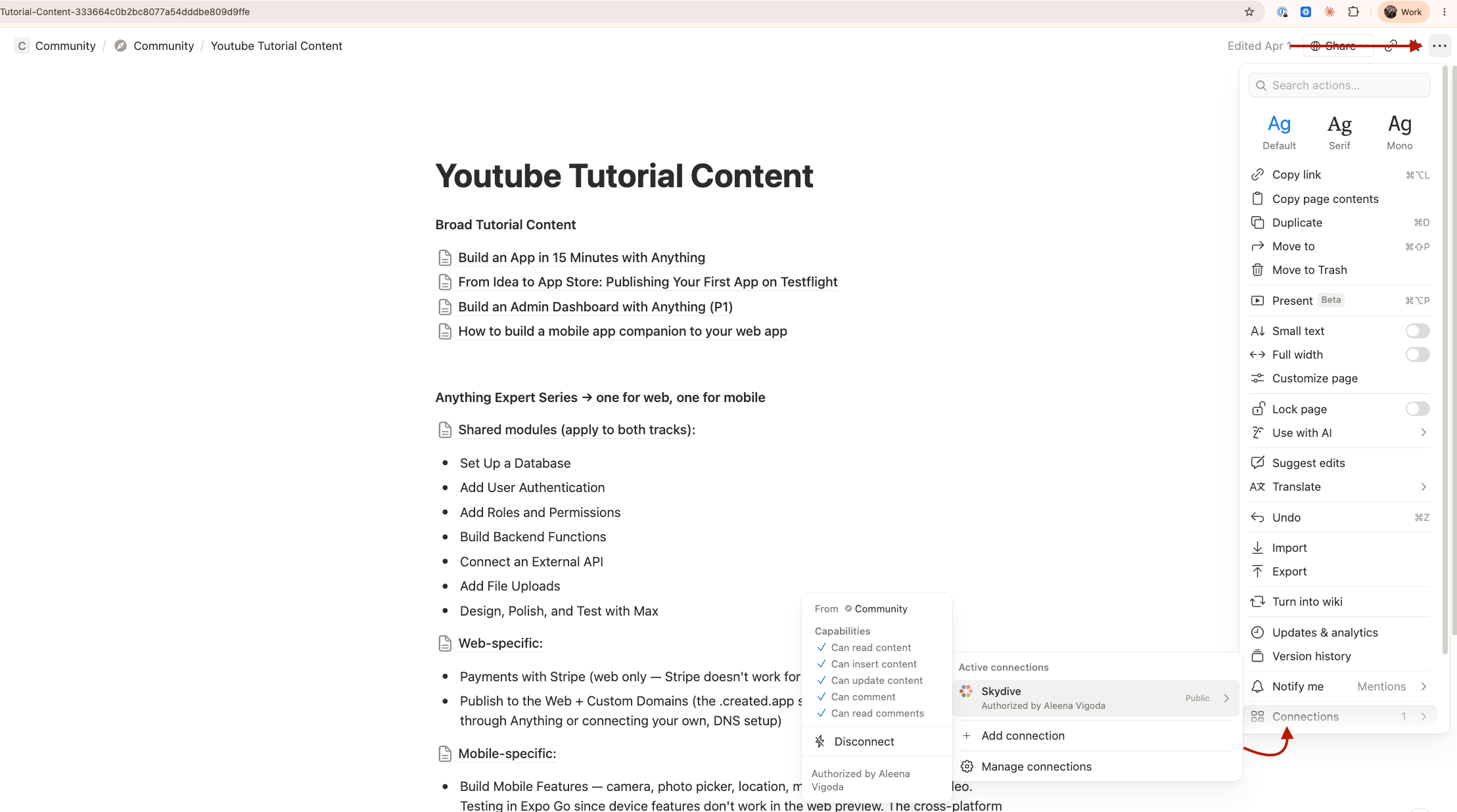
A Notion page's Connections menu, showing the agent's active connection and its capabilities
Keep new content and pages flowing in
Edits are always picked up: because access is live, changes to a page the agent already has need nothing from you. New pages are the part to plan for. The cleanest way to keep them included is to grant a parent page or a whole database instead of individual pages. In Notion’s own words, giving a connection access to a parent page provides access to its child pages, so pages you add underneath it are reachable without re-granting each one. Sharing a single leaf page only shares that page, so new sibling pages won’t be seen.- Want the agent to keep up with an area? Grant the top-level page or database for that area, and keep new work inside it.
- A new page isn’t being picked up? It’s outside a granted page. Open its “ menu, choose Connections, and add the agent, or move it under a page the agent already has.
Connecting the integration
1
Authorize Notion for the agent
From the agent’s connections, choose Notion and sign in.
2
Pick the pages to share
Use Notion’s page picker to grant access to the pages and databases the agent should work with. Select the existing pages you want it to use here; anything you don’t pick stays invisible to the agent.
3
The agent gets to work
It can now read and update everything you shared, through the secure proxy.
Learn more
Notion API docs
The full reference for what’s possible.
How credentials stay safe
The proxy model that keeps tokens out of the agent’s reach.